Showing posts with label Things. Show all posts

Thursday, May 19, 2011

Introduction to Workshop

This blog is created to support the Workshop: "New technologies - Web 2.0 for libraries" in Petrozavodsk, June 2011.

Objectives of the workshop is to explore and learn about the web 2.0 technologies and to be able to use these technologies in daily work. The 2011 version has two sessions of 4 hours and will address partly "old", already discussed topics from the 2009 version, but also we will tackle new topics about Web 2.0 and the practical use of tools and technologies

Topics for the workshop, Part 1: Tuesday 28 June
  • EveryThing 2.0
  • Workflow, Part 1
  • Blogging
  • What about Toolbars, Personal Startpages & LibraryThing?
  • Social Networks & Twitter
Topics for the workshop, Part 2: Wednesday 29 June
  • Workflow, Part 2
  • RSS
  • Mobile technologies
  • Alternative PUBMEDs
  • Discovery
A more detailed program will be available at the workshop.

In the workshop we will use the blog to take a closer look at some of the new technologies. Each blog posts starts with a brief explanation of a web 2.0 topic, followed by discovery exercises. These exercises give the background needed to understand the tools, and suggestions for further reading.

The workshop is based on the original Learning 2.0 program*). This program was created to encourage library staff to explore new Web 2.0 technologies (23 of them). We will not have enough time to discover all 23 Things in our workshop. This blog concentrates on 17 Things, and hopefully you will be inspired to continue the exploration on your own.


*) The Learning 2.0 program was designed by Helene Blowers, PLCMC Technology Director, with the support and assitance of several staff and is loosely based upon Stephen Abram's article, 43 Things I (or You) might want to do this year (Information Outlook - Feb 2006) and the website 43Things.

There are many versions of this learning programme, in several languages. You can find lists of libraries and other organisations following the 23 Things programme at Learning 2.0 libraries at Del.icio.us or Learning 2.0 throughout the World a Google map by Minerva Shelved.


Wednesday, May 18, 2011

# 1: Web 2.0, Library 2.0 and Beyond

What is Web 2.0?

It's a term that was coined in the past few years to refer to the next generation of the Internet, which is more social and participatory. That is, rather than just using the Internet to read information, we can also use it to interact with others, create and share our own content, etc.


(Illustration: Markus Angermeier)
Web 2.0 is a social concept, you communicate and interact, users creates content and share with other users. Content can be re-used and combined into new content; mashups. Another characteristic of 2.0 is beta; things are never finished, there will always be a new and better solution!

Learn more about Web 2.0 in Wikipedia.

Probably the best introduction to Web 2.0 is this video by Michael Wesch called "The Machine is Us/ing Us.


Library 2.0

Library 2.0 is term used to describe a new set of concepts for developing and delivering library services. The name, as you may guess, is an extension of Web 2.0 and shares many of its same philosophies and concepts including harnessing the user in both design and implementation of services, embracing constant change as a development cycle over the traditional notion of upgrades, and reworking library services to meet the users in their space, as opposed to ours (libraries.)

Many have argued that the notion of Library 2.0 is more than just a term used to describe concepts that merely revolve around the use of technology; it also a term that can be used to describe both physical and mindset changes that are occurring within libraries to make our spaces and services more user-centric and inviting. Others within the profession have asserted that libraries have always been 2.0: collaborative, customer friendly and welcoming. But no matter which side of the debate proponents fall, both sides agree that libraries of tomorrow, even five or ten years from now, will look substantially different from libraries today.

In the Cloud, Semantic Web, Databases, Web OS, Mobile, distributed Search, Intelligent personal agents
View another webinar from sirexkat

Learn more about Library 2.0 in Wikipedia.

Discovery Excercise:
Many examples can be given about Library 2.0 use by or for libraries. Here are just 2:
EXTRA:


Web 3.0, Library 3.0 and Beyond

Book cover


Tuesday, May 17, 2011

# 2: Blogging

A blog (an abridgment of the term web log) is a website, usually maintained by an individual, with regular entries of commentary, descriptions of events, or other material such as graphics or video. Entries are commonly displayed in reverse chronological order. "Blog" can also be used as a verb, meaning to maintain or add content to a blog (From Wikipedia).

Watch this video - Video: Blogs in Plain English - a great introduction from Common Craft.


You can setup your very own personal blog to begin recording your thoughts, discoveries and notes in. Blogger and WordPress are examples of popular free online blog hosting services - both extremely easy to use. In the the exercises we use Blogger, but that is only a recommendation. If there is another blog hosting site that you are more comfortable with, please feel free to use it. If you are familiar with Blogger, you can also try out WordPress.

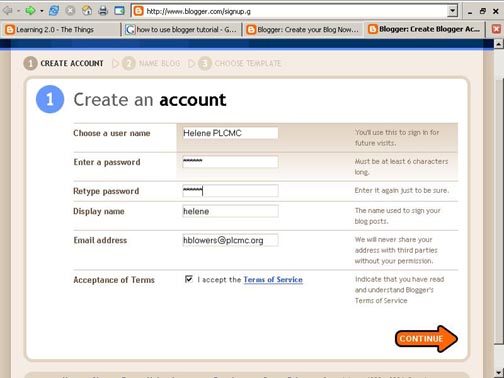
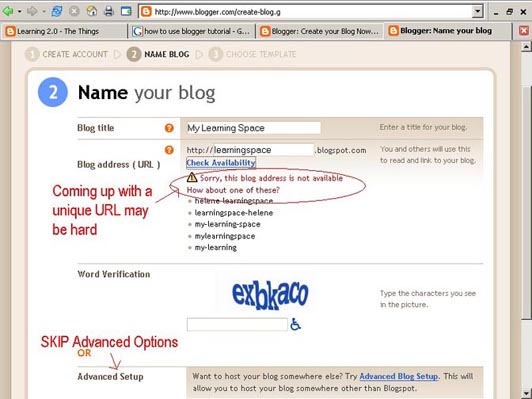
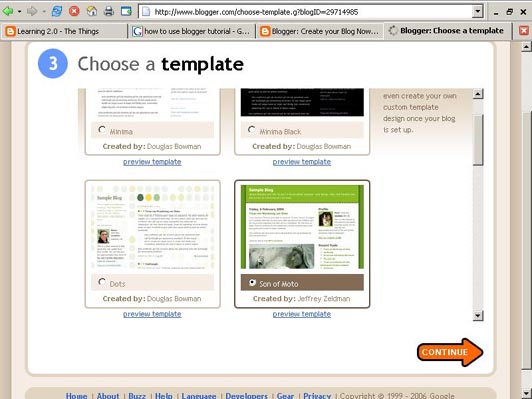
Creating a blog using Blogger takes just three steps:
  1. Create an account (view screenshot)
  2. Name your blog (view screenshot)
  3. Select your template (view screenshot).
Once you’ve created your blog here are two important things to know:

  1. To add posts: You will need to sign into Blogger each time you want to add, edit or configure your blog. Be sure to write down your login and password.

  2. To view your blog: Your blog address is http://(xxxx).blogspot.com, (xxxx)=the unique identifier you entered in Step 2. Be sure to also write down your blog address.
Some 2.0 Tips:

  • Remember that the whole web world can see your blog title and blog address, so you probably don’t want to use your real name. Consider creating a blog name that’s anonymous, yet uniquely you.

  • It's a good idea to get a small notebook in which to write all the usernames and passwords that you will have to create during this program. All of the tools that we will play with will require you to create an account. Unless you can find a way to use the same sign in information over and over, you will want to have a place to keep all this information together.

  • Bookmark your blog for easy access throughout the workshop.
Learn more

Discovery Exercise:
  1. Write a comment to this blog (the "Web technologies for libraries"-blog)
  2. Setup a blog for yourself through Blogger, (use your gmail account)
  3. Add a test post or two
  4. Customise the blog, add photos, gadgets and other stuff
  5. Embed documents/presentations in a blog post
  6. More exercices: Set up a blog in WordPress, and do some of the same stuff

Use for or by Medical Libraries & Librarians (examples):

Monday, May 16, 2011

# 3: RSS

Make your life "really simple" with RSS


You’ve heard of RSS? You’ve seen those small funny tags on websites? In the information world, RSS is not only revolutionalizing the way news, media and content creators share information, but it also is swiftly changing the way everyday users are consuming information.


RSS stands for “Really Simple Syndication” and is an XML file format for delivering content on the web. You will also find RSS referred to as “web feeds” or just “feeds”. If your favourite website publishes an RSS feed, you don’t have to keep visiting it to find fresh content; you can just subscribe to the RSS feed and wait for that fresh content to come to you!


Learn more about RSS from Wikipedia

Watch this video - RSS in Plain English
(3:43) - a great introduction from Common Craft.


RSS aggregators

RSS aggregators are applications that read RSS feeds. An aggregator will take an RSS feed and convert coding into something that is readable, with a defined title, formatting, and hypertext links that you can click on. The other important feature of an aggregator is the built-in update function that checks the feeds you’ve subscribed to for fresh, new content. If new content is found, your aggregator delivers that to you.
Types of aggregators:
  • Desktop: these are software applications that required downloading and installation on a computer.
  • Web-based: online aggregators live on the web and require users to set up a username and password to access them. To access a web-based aggregator, you go to the site, login, and read your feeds online. The advantage of web-based aggregators is that you can access them from multiple computers (home, work, service desks, etc.). Two popular web-based aggregators are Bloglines and Google Reader.
  • Personal startpage Tools with integrated RSS readers, like:
  • Browser- and email client-based: the latest versions of many browsers (like Firefox and Internet Explorer 7) include the ability to subscribe to and read RSS feeds right in the browser. Also, a couple of popular email clients (like Outlook 2007 and Thunderbird) include a feed reader.
    (See also : Comparison of feed aggregators)
Subscribe to feeds
If a website publishes a feed, it is usually indicated on the site in at least one of the following ways:
  • a hyperlinked orange icon
  • a link called “RSS” or “XML” or “Subscribe” (or some variation thereof)
Most often, when you want to subscribe to a feed, you have to right-click the link to the feed (which, again, can be indicated by either an orange icon or a text link), select “Copy Link Location” or “Copy Shortcut”, and add the link to your aggregator. Learn how to set up your GoogleReader page (view screenshot)
Discovery Exercise:
  • Set up a Google Reader account *) Sign in with your Google account.

  • Subscribe to the feed for this blog, address: http://web20spb.blogspot.com/.
    To subscribe:
  1. right-click the feed URL
  2. select “Copy Link Location” or “Copy Shortcut”
  3. open up your aggregator, and subscribe to the feed using one of these methods: login to your Google account, click “Add subscription” at the top-left of the page, paste the feed URL into the input box that appears, and click “Add”.
  • Once you’ve subscribed to the feed for this blog, check out some of your colleagues blogs and subscribe to their feeds! To find their feed addresses, you will have to visit the blog and look for one of those RSS icons or an RSS/Subscribe link.
  • Try Google Reader Features like:
  • Still looking for more feeds to subscribe to? Check out some journals or databases, several of them offer feeds.

  • Add stuff - RSS Feeds ( See below for examples of medical rss feeds)

  • Save a PubMed Search as an RSS Feed and add it to your RSS Reader.
    To create an RSS feed and enter it into a feed reader:
    After you have run the search you want to use:
    • Step 1 : Click on RSS, above the search box.
    • Step 2 : Choose the number of items to be sent daily to the feed reader, and rename the feed, if desired. Click Create RSS.
    • Step 3a : Drag and drop the XML icon onto the feed reader interface
      OR
      Step 3b : Click on the orange XML icon, and copy the URL in the address box of the resulting browser window. Follow the instructions of your feed reader software .
  • (See the complete Pubmed Tutorial in RSS)


Further Readings (optional)
RSS for Non-Techie Librarians, Steven M. Cohen (this article is librarian/library-focused, but the explanations are approachable and the ideas are easily adaptable to any context

Use for or by Medical Libraries (examples):


*) You can also use Bloglines. Both aggregators offer similar features and functionality and the choice between the two usually comes down to personal preference. If you need some help deciding between Bloglines and Google Reader, take a look at this article, or set up accounts on both sites, add some feeds, and decide for yourself!

Sunday, May 15, 2011

# 4: Personal startpage

Personal home page
By using a personal home page you can collect useful information on your own page. Here you can see your emails, news from journals and blogs, news feeds from database searches, personal calendar, local weather forecast and much more - useful and not so useful :-) You can also select themes to give your page a personal look. iGoogle, Netvibes and Pageflakes are providers of home pages.


EAHIL Social Netvibes, http://www.netvibes.com/eahil

To know more about Netvibes, have a look at this Tour: http://tour.netvibes.com/overview.php

The use for Libraries and users:
  • Show your content in a different way, with lot of possibilities to share & communicate. Netvibes gives you control over what you publish
  • Use Public pages for Social Media Monitoring
 Discovery Exercise:
    • If you already have created Netvibes account, please go to http://www.netvibes.com/ and login.
    • If you do NOT have an Netvibes Account yet, please make one on the spot (Go To http://www.netvibes.com/#signup to signup. You will need access to a web-based email account. You can use a gmail account for that.)
    • After login in go to: Show Settings and change your :
      • General Settings
      • Also explore settings for Region & Languages
      • Choose a new Theme to your page and
      • Choose a new Backgroup for your Personal Start Page.
    • Adjust Setting, REGION & Languages
    • Check out the : Add Content option in the left upper corner.
    • Add the RSS feed from the blog to your start page
      • search medical widgets,pubmed search engines, medical feeds
      • find & use feeds from Med Journals
      • Add a rss feed from a Pubmed Search
    • Public pages for medical library use, Share from NBAMHI,
    • Create a Universe/Public page for YOUR Library
    • Try the html widget to embed a documents or picture in your Netvibes
    • Try the html editor widget to create your own (or others) html content.
      You can even add web content by just copy&paste parts of webpages into this widget (and adjust it afterwards.)


Use for or by Medical Libraries (examples):
Reblog this post [with Zemanta]

Saturday, May 14, 2011

# 5: Social Networks

Defining Online Social Networks

This video from Common Craft provides an overview of social networking in the 2.0 world:


As with a lot of 2.0 tools, a definition of a “social network” is difficult — it’s one of those “you’ll know it when you see it” tools! But how do you know what to look for? Here are a few characteristics of social networks:
  • profile pages: when you sign up for an account on a social networking site, your “profile page” becomes your home base. Most social networks allow you to add as much or as little information about yourself as you’d like. Common fields include your name, contact information, interests, and a photograph of yourself.

  • “friending”: this is probably the most important characteristic of a social network because finding friends (existing or new) on a social networking site is pretty much the point of being there in the first place! So, most social networks allow you to add another person/profile as a “friend” or a “contact” and your collection of friends becomes your own personal social network For example, Facebook began as a social network for college and university students; it has since opened up to allow anyone to join the network, but it still remains most popular with students.

  • groups: with real life social networks, groups tend to form around common interests, therefore most online social networks allow users to start a group or join a group based on their interests or common goals. Depending on the social networking site, you will probably find a group that represents your interests, regardless of what that interest might be!
Popular Online Social Networks
  • Facebook - is a social networking service and website launched in February 2004, in January 2011, Facebook has more than 600 million active users
  • MySpace - what began as a place for independent bands to promote their concerts and music has turned into the most popular online social network in the English-speaking world!
  • LinkedIn - if Facebook caters to the student crowd, LinkedIn is where you go when you graduate! LinkedIn is “an online network of more than 9 million experienced professionals from around the world, representing 130 industries.”
  • VKontakte is the most popular network in Russia. Read about VKontakte in Wikipedia

Ning - Privat Social Networks

Ning is an online platform for creating social networks. The unique feature of Ning is that anyone can create their own social network for a particular topic or need, and for specific groupes. Read more about Ning in Wikipedia. And you can learn how to use Ning in the Ning workshop Tutorial

An example on the use of Ning is Classroom 2.0 - a social network for those interested in Web 2.0 and collaborative technologies in education. Library 2.0 is a Ning for librarians and others interested in Library 2.0, you will also find a group for medical libraries.


Discovery Exercise:

  1. Log in to your Facebook account, and take a closer look. Update your profile with correct information and privacy settings.

  2. Search for people you know (eg. me), and ask to be added as a friend

  3. See if you can find a group for Librarians, and sign up. Post (write something) on the group Wall

  4. Take a look at the EAHIL page and the Nordic-Baltic Association for Medical and Health Information page.

  5. Create a page for your library. Supply with links and tools


  6. Check out some of the other online social spaces, like LinkedIn. Set up a profile (or simply explore other profiles), check out the features and blog your thoughts!


Use for or by Medical Libraries (examples):

Friday, May 13, 2011

# 6: Twitter

Twitter is a free social networking and micro-blogging service that enables its users to send and read each others' updates, known as tweets. Tweets are text-based posts of up to 140 characters, displayed on the author's profile page and delivered to other users - known as followers - who have subscribed to them.
Senders can restrict delivery to those in their circle of friends or, by default, allow open access. Users can send and receive tweets via the Twitter website, Short Message Service (SMS) or external applications. The service is free over the Internet, but using SMS may incur phone service provider fees. (From Wikipedia).

Watch this movie about Twitter from CommonCraft:


There are good examples about the use of Twitter for Libraries, and even Medical & Health Information Services, including Medical Libraries.
Please have a look at this presentation from Patricia F. Anderson, a medical librarian to follow!


A great overview of Libraries on Twitter can be found on the wiki "Library Success"
More info on Twitter:


Discovery Exercise:

  1. Sign up for an account at http://www.twitter.com

  2. Search for people you know. Use The Find People option.
    (Guus = @Digicmb, Karen = @karenbuset).
    Start to Follow People. The number of people that will follow you will grow that way too


  3. The hashtag for this Workshop is: #NBAMHI, use it in tweets about our classes.
  4. Who to Follow?
  5. Search for Topics that interest you. Use Twitter Search
  6. Find people from your library, hospital or university and follow them.
  7. Make use of Lists (read this help)
  8. Twitter Directories, like Twellow, the Twitter Yellow Pages
  9. Find more Twitter directories out there and try them.
  10. What is your Klout Score? http://klout.com
  11. Find out via http://socialmention.com what is been said IN SOCIAL MEDIA about your library, hospital or university.
Use for or by Medical Libraries (examples):
  • Medlibs on Twitter: http://twitter.com/medlibs
  • PubMed by NCBI on Twitter: http://twitter.com/ncbi_pubmed
  • Search Pubmed by twitter: Send : @pubmed your search term(s) You will then get a reply with the first, most relevant result and a link to the article at PubMed.

Thursday, May 12, 2011

# 7: Toolbars

Web Browser Toolbars are well-known and commonly used i.e. the Google Toolbar. Creating a LIBRARY Toolbar to distribute for your users can be very usefull.
They give fast, easy access to catalogs, databases and other useful resources.
Many libraries have been creating them the last years. (Overview)
You can create your own, free Toolbar for instance at:

But have a look at this one first: RussianMedlibs Toolbar
It has been created for the participants of the Workshop, as an example, but can also be used in future as a community tool, as it has a chat box and messaging options.
It can be installed in Internet Explorer or Firefox.

New Developments at Conduit:
Discovery Exercise:
  • Make your own (library) Toolbar: Start at http://www.conduit.com and Click "Get Started"
  • Add RSS feeds to the Toolbar
  • Add Links and Menu's to your Toolbar that point to your Library or other webpages
  • Discuss WHERE you (and your users) would like to have direct search possibilities. Can people install tools like Toolbars on the workspace computers? Share your answers with the others on the Facebook Fanpage and/or the Google Doc shared map.
Use for or by Medical Libraries (examples):
Reblog this post [with Zemanta]

Wednesday, May 11, 2011

# 8: Social bookmarking

Tagging is an open and informal method of categorizing that allows users to associate keywords with online content (webpages, pictures & posts). Unlike library subject cataloging, which follows a strict set of guidelines (i.e.Library of Congress subject headings), tagging is completely unstructured and freeform, allowing users to create connections between data any way they want.

Flickr and LibraryThing are examples of sites that allow users to take advantage of tagging. Now we will take a look at how tagging enables people to share their favorite web sites with others by using a social bookmarking site.

Start your exploration of social bookmarking by watching this video by the Common Craft.


Learn more about tagging and social bookmarking in Wikipedia.

There are several social bookmarking sites available, the most popular is Del.icio.us. Del.icio.us allows you to bookmark a web page and then add tags to categorize your bookmarks. You can also see how other users have tagged similar links. It also allows you to discover websites on topics that interest you that other people have found.

Discovery Exercise

  1. Search del.icio.us for something you’re interested in. Check out some of the tags people have used for that topic.

  2. Set up an account on del.icio.us. Add a few websites and add your own tags to each of your links. If you like del.icio.us and want to easily add bookmarks to your account, you can put buttons on your browser toolbar. Instructions are available for Internet Explorer and Firefox.
  3. Set up an account on Diigo Check out the long list of Tools, http://www.diigo.com/tools and the possibility to save to Delicious. If you like Diigo better, try to import your Delicious Bookmarks into Diigo.
Use for or by Medical Libraries (examples):

Tuesday, May 10, 2011

# 9: Photos - Discover Flickr

Within the past year, Flickr has become the fastest growing photo sharing site on the web and is known as one of the first websites to use keyword “tags” to create associations and connections between photos and users of the site.

Watch Online Photo Sharing in Plain English (2:50) - from Common Craft


To learn more about Flickr, you can take the Flickr Tour (6 steps)

As you know (or should know) not all Google Images are copyright-friendly. You do not have the rights to use all visuals found there. That is also true with Flickr photos in the overall collection. But Flickr have arranged separate collections based on the copyright-friendly Creative Commons lisences. The photos found here can be downloaded and used by you, a visitor to the site. Here is some help in downloading photos from the site

Discovery Exercise:

1. Take a good look at Flickr and discover what this site has to offer. Find out
2. Visit the Flickr Creative Commons site and explore what kinds of photos you could you use for your library or classroom. Do a search using keyword, save a photo to your hard drive (in My Pictures is best).

Use for or by Medical Libraries (examples):


Monday, May 9, 2011

# 10: Videos - YouTube

YouTube is a popular video hosting & sharing service founded in 2005, and bought by Google in 2006. There are other places to find videos on the internet, but YouTube has become the most popular. Without installing software or even setting up an account, you can view videos and embed them on your blog or website (they don’t have to be yours – you can embed any video you find on YouTube). You have to create a (free) account to upload videos.

A social site like YouTube democratizes film making, the way that blogs democratize publishing. You might find, amateur TV shows, people’s weddings, cute pets, and other personal videos that people upload to share with friends and family. You can also find scenes from movies, music, comedy bits, and videos of great moments in history. There is something for everyone, and you can search it just like Google to find something specific. You can also find useful stuff like tutorials and instruction videos. Libraries can make their own YouTube channels.

Here are some examples of creative ways libraries are using YouTube:

How about library building projects, staff orientations, guides to using library services, book reviews or exhibitions? There are many opportunities to use video in the library.

You can find other popular video hosting sites in Wikipedia’s list of video sharing websites.

Discovery Exercise:

  1. Watch a few (or all) of the clips on this page. Now that you know how to comment, if you like, you can comment on the YouTube-clips.

  2. Do some searching around YouTube yourself and see what the site has to offer.

  3. Search and see if you can find a PubMed Tutorial.

  4. Find videos tagged “libraries” og "book"

  5. Explore YouTube & find a video worth adding as an entry in your blog. You can do this by clicking “share” under the video window.

Optional assignment:

  1. Sign up for your own YouTube account at http://www.youtube.com/signup. Create some playlists, “favorite” some videos, subscribe to some tags, explore & have fun!

  2. Watch this 3 minute video to learn how to make your own video and put it on YouTube.

Use for or by Medical Libraries (examples):

Sunday, May 8, 2011

# 11: LibraryThing

LibraryThing is a site for book lovers. LibraryThing helps you create a library-quality catalog of your books. You can do all of them or just what you're reading now, and because everyone catalogs online, they also catalog together. LibraryThing connects people based on the books they share.

Learn about LibraryThing: You can Take the tour and read the very short introduction.


Discovery Exercice:


  1. Create an account. It is really simple!
  2. Add at least 5 titles to your list.
  3. Check out any of the groups? Did you find a group of users that share your interests?
  4. Check out LibraryThing Local. Find libraries in your area.
  5. Put your library in there.
Use for or by Medical Libraries (examples):

Saturday, May 7, 2011

# 12: Instant messaging (IM)

Instant messaging provides users the ability to communicate quickly in real time. One of the advantages of using IM instead of email is that you know if the person you want to talk with is available.

Learn more about Instant messaging (IM) in Wikipedia.

To use IM you must have an account. There are a number of instant messenger providers but the four most common ones are: AIM, Yahoo!, Google Talk and MSN. Unfortunately, however, one of the drawbacks with having multiple providers is that users of one service cannot talk to users with a different service.

You can access these IM services in different ways:

  • download a standalone application
  • use the web interface provided by the company
  • use a product that supports multiple IM services.
Meebo is an example of web based program that allows users to log on to multiple IM accounts at once. The benefit of having a Meebo account is that it will store all of your usernames and password for the different IM services you use.

Read more about How Instant Messaging Works

Discovery Exercise:

As with any "real life" IM experience, you'll have to find out which of your friends you can connect with by asking their screenname and which service they use. You cat IM alone, so you'll need to find a partner for this one. In this exercise, it will be helpful if you and your partner are logged in to Google Talk at the same time.
  1. Go to Google Talk. Click on "Launch Google Talk" and then sign in with your account (Gmail address).

  2. Ask your partner for her/his screenname. In this case, it'll be the full Gmail address.

  3. Add your partner to your Contacts list by entering their Gmail address into the "Search, add, or invite" box. You should see your new contact in the list and s/he should appear as "Available" if you are both logged in at the same time.

  4. Start a chat session with your partner. Open a chat window by clicking on your partner's name from the Contacts list. You'll see an open whitespace with a field for typing at the bottom. Start typing and see what happens!

  5. Besides chatting with text, you can also send links to websites, videos, and more. Feeling adventurous? Visit YouTube, the web's largest and best-known video site, and search for a video with a library theme. Share the video with your partner by copying the video's URL and pasting it into your chat box. It's like magic!
If you're already using an IM program besides Google Talk, why not set up a Meebo account so that you can monitor all of your Buddy Lists?
  1. Go to Meebo to sign up for an account. You'll want to configure your accounts so that Meebo signs in to all of them at once. HINT: When logged in, look for the "Accounts" link on the left.

Friday, May 6, 2011

# 13 EveryThing 2.0

EveryThing 2.0
Web technology is affecting all areas of communications, business, organizations, govenment, health and medicine, banking .... ALL!

"FROM ISOLATION, SEPARATION AND SOLITUDE TO ENGAGEMENT, RELATIONSHIP AND CONVERSATION" Everything 2.0 Blog

But you will always find those poiniers that explore one topic or community from the start with a drive to improve, for the benefit of all.
Two areas relevant for medical librarians are:

  • Research 2.0, a.k.a. Science 2.0
  • Medicine 2.0 a.k.a. Health 2.0
http://www.netvibes.com/medicine20maastricht
http://www.netvibes.com/tedxmaastricht

The Future of Health (at TEDx Maastricht 2011)


Wednesday, May 4, 2011

# 14 Workflow Tools

WHAT

Web Technology has developed rapidly over the years. Major important thing is that it is giving normal users (and therefore also librarians) more power to create, edit, maintain, distribute, share etc where as in the past these features were merely possible for technical and (network) IT staff.
For almost any functionality or tools offered "in house" one can find several alternative on the web.
(roughly in order of discussion in the Workshop

Discovery Exercises

  1. Sign up (if you haven't already done so) for Gmail at Create an Account. When you sign up for Gmail, you get a Google Account that gives you access to all of the free Google products. Just enter your Gmail username and password when you're asked to sign in.
  2. Sign up (if you haven't already done so) for Facebook. Take a look at the Help Center to learn more.
  3. Go to Google Documents. Create a Document where you can take notes from the workshop. Try out editing, publishing & sharing (Google) Documents.
  4. Create a presentation. Make a few slides about what you already have worked with.
  5. Go to Flickr, you can sign in with your Gmail or Facebook account. See if you can find some picture on Flickr to put in your documents. Create a group NBAMHI (and /or your library) to collect and share pictures.
  6. Upload your presentation from Google Docs to SlideShare, you can sign up for an account, or sign in with e.g. your Facebook account.
  7. Try out Communication. - GoogleTalk or Facebook. Find people available and invite them to chat! You can also take a look at this Google Chat Tutorial or check the Facebook help Center.
  8. Plan a reunion meeting with your group next week. The meeting can take place in Skype or you can use Google Talk/Facebook. Use Doodle for planning
  9. Make a survey with Surveymonkey.com. Distribute with Gmail or on your blog.

  10. If time Try Scribd and Issuu, find out how they work and compare them.